 CCViewer
GitHub
CCViewer
GitHub
How to View Claude Code Session History: 3 Methods
To read a saved Claude Code conversation, open its .jsonl transcript in CCViewer. To continue the work, use claude --resume. To inspect raw records or automate analysis, use a text editor or jq. A viewer can only show records present in the file.
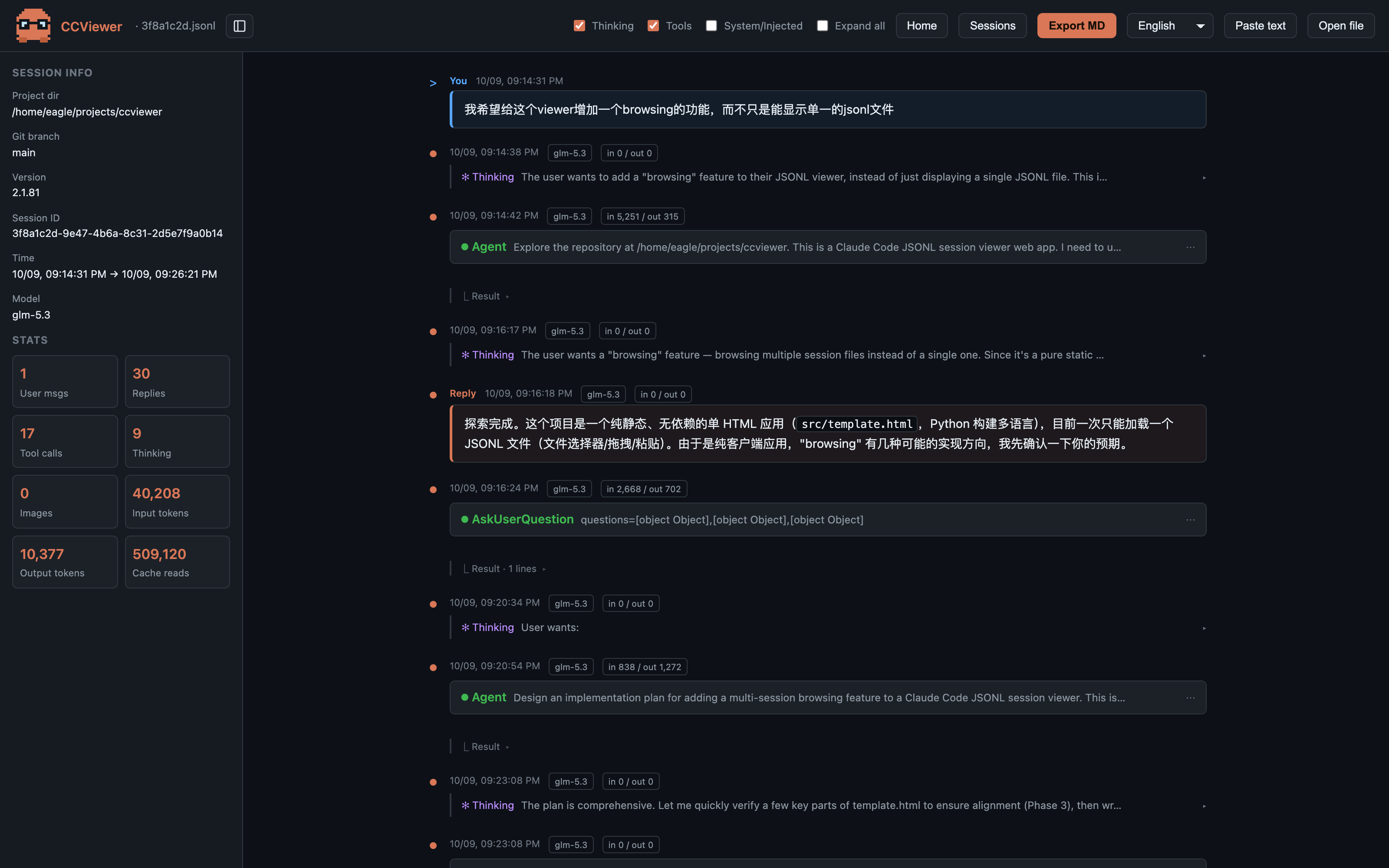
Read a session in the browser
- Find a transcript under your Claude Code configuration directory, usually
~/.claude/projects/. - Open CCViewer and choose the file, paste JSONL text, or select a project folder.
- Expand tool calls and thinking blocks, inspect the available usage fields, then export Markdown if you need a readable archive.
Folder imports are stored in this browser's IndexedDB. Clearing site data can remove the imported library; keep the original files as a backup. Token totals reflect records in the file; cost snapshots, when present, are not a billing statement.
Continue a session in the terminal
claude --resume
claude --continue
claude --resume SESSION_ID
Run these in the relevant project. Resume continues the conversation; CCViewer is a reader and does not send a new prompt to Claude. See the official session guide below for the current picker behavior.
Inspect the original JSONL
jq -r 'select(.type == "user") | .message.content' session.jsonlSome user records contain tool results rather than a human prompt. Inspect the content type when scripting. A malformed line can cause jq to stop; keep an untouched copy before attempting repairs.
Try a fictional sample
Download the synthetic JSONL sample, then import it. It contains one prompt, a fictional Read call and result, and a Markdown reply. It contains no real conversation or credentials. The 120 input and 45 output tokens are illustrative values.
Hosted and offline use
Parsing and rendering happen locally. The hosted site automatically loads Microsoft Clarity for analytics and recordings. Remote images in a transcript can also cause requests. For disconnected use, download the HTML from the repository and open it with networking disabled; offline copies do not load Clarity.
Sources and verification
Session files are parsed and rendered locally in your browser. The hosted site automatically loads Microsoft Clarity to record page interactions. Offline copies do not load analytics.